|
v0.16.3 |
Loading...
Searching...
No Matches
|
v0.16.3 |
Docker is an open platform that allows for the distribution and deployment of applications across different systems. In the context of MoFEM it allows for the distribution of pre-compiled libraries for the Docker platform that can then run on any system. The Docker platform works by using the functionality provided by the Linux kernel to provide lightweight containers and thereby avoiding the need to run costly virtual machines. It’s through the use of containers that MoFEM is compiled and run.
This installation is suitable for Linux, macOS and some versions of Windows. In macOS, a lightweight Linux distribution is virtualized to run the Docker containers in.
You can download and install Docker following instructions on the Docker installation webpage.
If you are using Windows you might have to set up some additional settings. For that you can follow video with instructions or instructions on docker website and come back to this page once Docker is running.
The containers available at the moment are shown bellow and the recommended one is shown in green:
| Purpose | Image | Tag |
|---|---|---|
| Version 0.15.0 | likask/mofem-spack-jupyterhub | 0.15.0 |
| Workshop2023 (older spack packages) | likask/mofem-spack-jupyterhub | Workshop2023 |
This section describes how to set up and run the Docker container within the Docker user interface. For doing this in terminal, go to the next section.
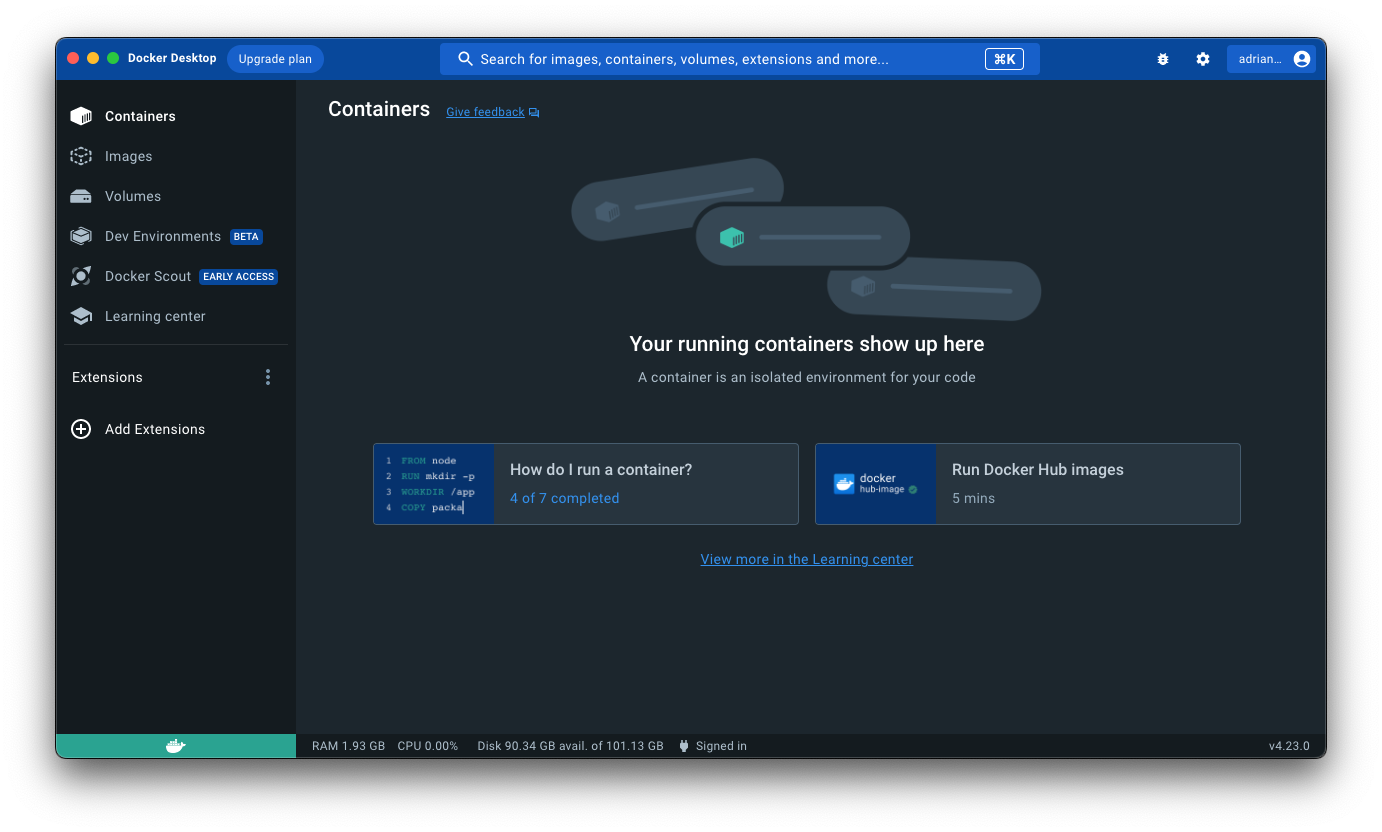
After opening Docker you should be able to see and follow similar options to the ones shown in the screenshots below, depending on the operating system and version of Docker you have.
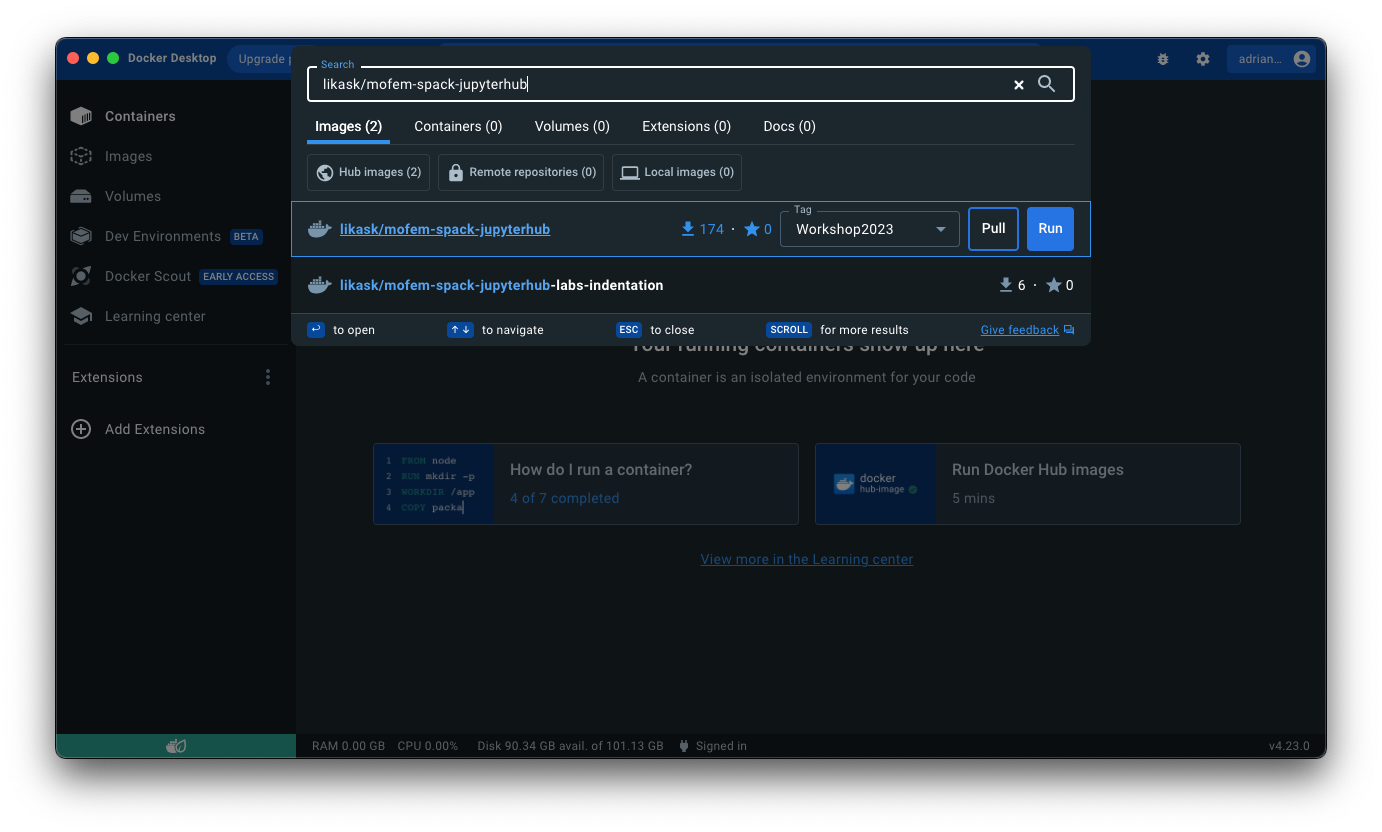
At the top you can see a search bar and if you are connected to Internet you can search for the container you want to run. Start typing likask/mofem-spack-jupyterhub and you should be able to see 0.15.0 option in the tag dropdown menu next to the Image. The steps are the same for the other containers listed above, using the relevant Image and tag names. Press Pull to download the container.
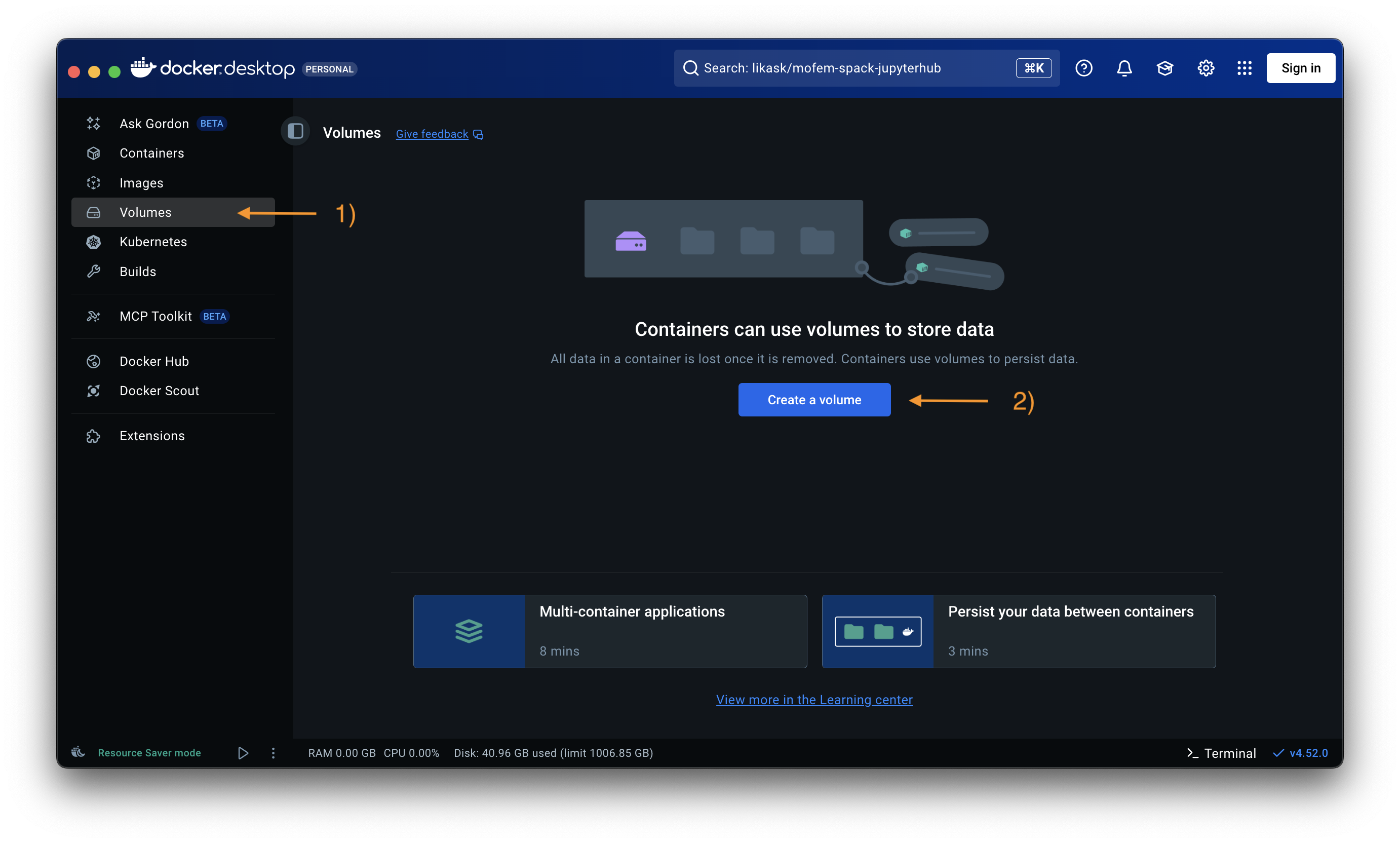
Optional: While the container is being downloaded, you can create a volume to store your work persistently. Go to 1) Volumes in the menu on the left and press 2) Create a volume, see Figure 3. Give it a name, e.g., mofem_volume, and press Create again.
Changes written inside a container are stored in that container’s writable layer. They usually survive
stop/start, but are lost if the container is removed (for example when using--rmor recreating the container). To keep your work (scripts, notebooks, results) across container removal and recreation, or to share data between containers, use Docker volumes:
- A volume is a persistent storage location managed by Docker and stored on your host machine.
- You attach it to a container so that anything saved in it survives container recreations.
- The same volume can be mounted into multiple containers, allowing you to share data between them.
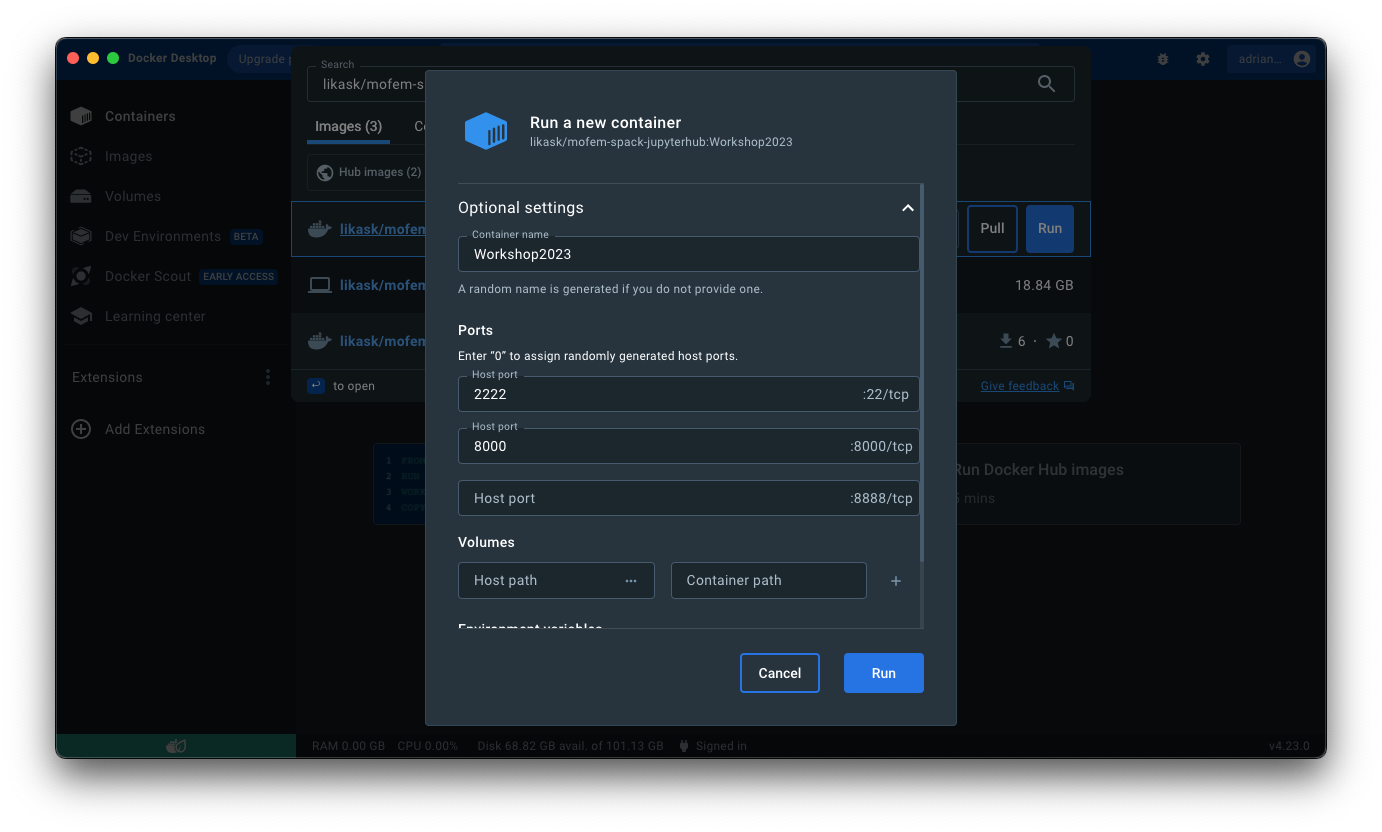
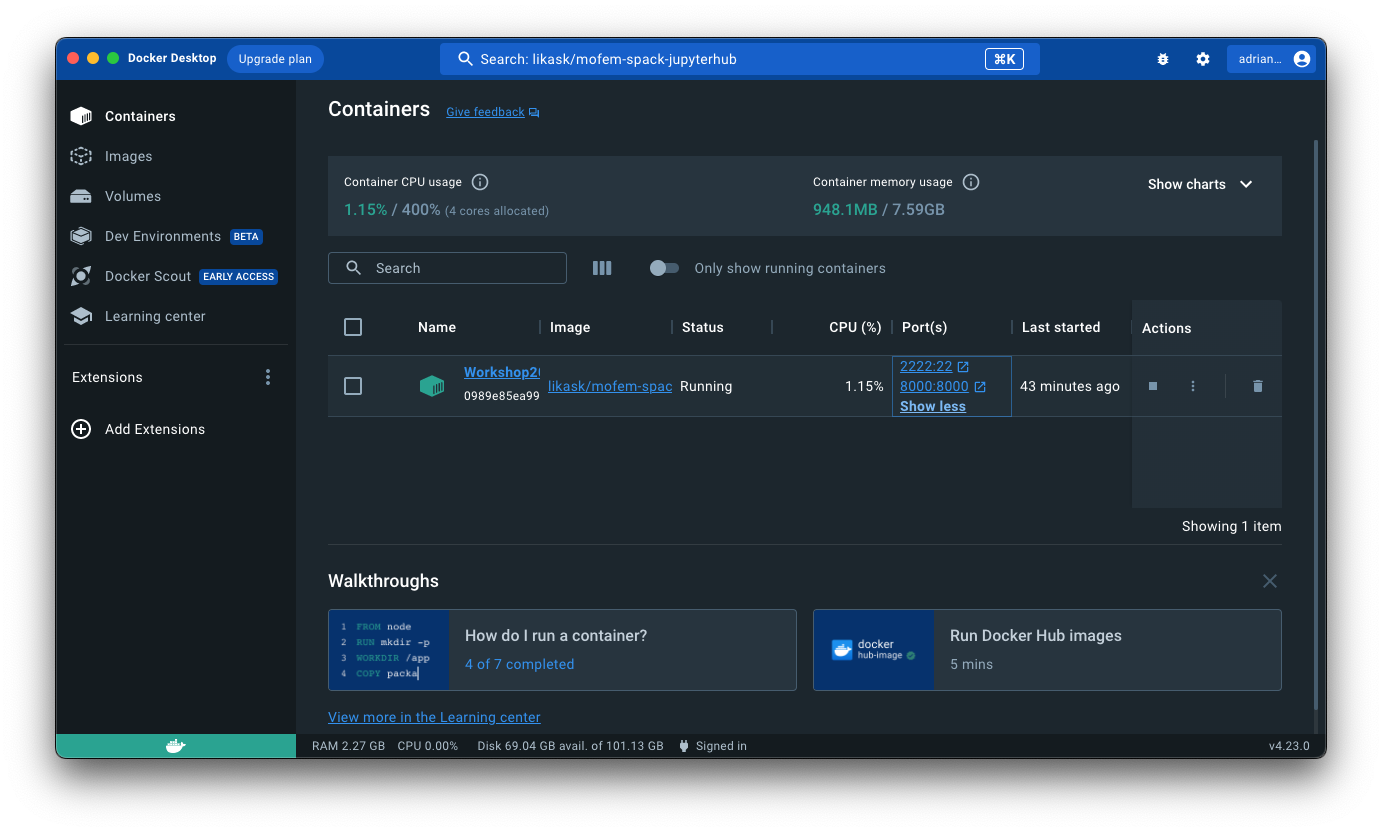
After the container is downloaded, you can find it in Images (in the menu on the left). To create and run the container, press ▶ (run) and a popup window should appear, as in Figure 4. The download time varies with the size of the container and internet speed and may take some time. Expand Optional settings and fill the fields as shown in Figure 4. These settings set a) the name of the container, the ports for b) ssh and c) http (browser) to connect to the JupyterHub container, and d) volume created in Figure 3.
After filling in the fields as above, press Run. The installed container can be found in the Containers section in the menu on the left. To open the container in your browser click on the second option in the Port(s) column of the required container or go to http://localhost:8000.
If you want to stop the container, you can do so from the Actions column on the right. Click on square to stop, and triangle to start it again.
If you used the Docker user interface for this installation, you can skip this section and continue to Accessing the hub section to find login options and how to run notebooks.
For the installation using terminal, initialise Docker, open your terminal and run the following command.
1) Pull image
If you want to use a different image from the list of available ones, replace likask/mofem-spack-jupyterhub:0.15.0 by image_name:tag_name taken from table listing images and tags.
2) Run container
Other options include:
--shm-size=16g or --ipc=host.--shm-size=16g sets container shared memory to 16 GB (g = gigabytes). Choose a value that fits your machine and workload. This is the safer/isolation-friendly option, but too small a value can cause failures or poor performance for multi-process MPI jobs.--ipc=host makes the container share the host IPC namespace (including host shared memory limits). This can help avoid shared-memory limits for large MPI runs, but it reduces isolation and is therefore less safe than using --shm-size.--tmpfs /tmp:exec,mode=1777-e OMPI_ALLOW_RUN_AS_ROOT=1 -e OMPI_ALLOW_RUN_AS_ROOT_CONFIRM=1Once installed, you do not have to reinstall the container if it was stopped. Instead, start it again by:
Similarly to viewing installed containers in user interface, you can view them in terminal, by running:
If you have a Mac with an ARM chip, you have to switch platforms when you run docker:
That results in a suboptimal performance, however, it is a workable solution.
The base system of our images is Ubuntu 20.04. To compile code for ARM architecture, we would have to upgrade the system to Ubuntu 22.04, and then it would be possible to compile MoFEM ecosystem for Apple Silicon. That is tested and works. However, additionally, you would have to compile Gmsh from scratch. Python pip installation for Gmsh on ARM architectures is not currently available. If you know how to do it, we will welcome PR from you to fix this problem.
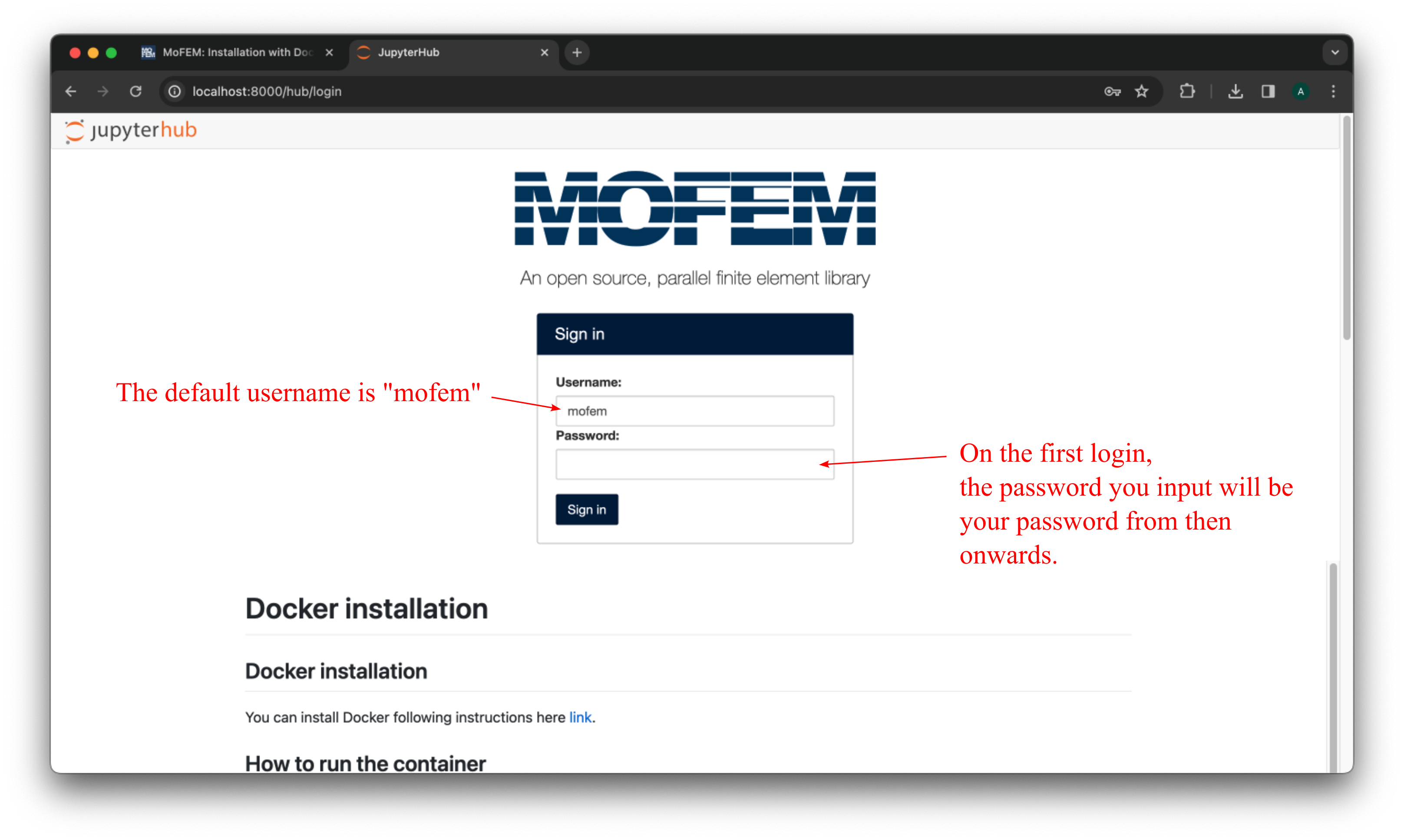
If you run a container locally, open http://localhost:8000 in your browser. Otherwise, substitute localhost by the name of your server. You should see a login page which looks as follows:
If you login as
mofemuser, you will have admin right in the JupyterHub, and you can add more users there by going toFile -> Hub Control Panel -> Admin -> Add Users
This is a case when the container is running on a server, and you share resources with other users.
You can also watch the step-by-step instructions for running container with MoFEM and JupyterHub using Docker user interface in the following video (the video is for an older version of the container, but the steps are similar for the current one):

If you wish to develop and debug in MoFEM using the just created container, read this section. Otherwise, you are done, and you can ignore the following instructions
Remember to have your docker container running when executing these instructions. If you have stopped the container, restart it with the triangle button of the relevant container, see Figure 4.
First of all, set up your SSH password. This is different from the one you use to access JupyterHub in the browser. To set it, run the following command from a terminal (in case you are using Docker user interface, you can open terminal by clicking on the three vertical dots in the Actions column, see Figure 4):
where mofem_v15 is the name of your container set in Optional settings and can be found in the Name column of the Containers section. To change the password for user mofem run:
and afterwards choose a new password.
In your browser (http://localhost:8000), login to the JupyterHub and open mofem_install_from_source notebook,
make sure that
build_type = "Debug"for the installation which allows for debugging, if run on a personal laptop, search for-j20and change it to-j4or-j2to avoid overloading your machine
run all of the cells in it (older containers might have install_from_source_debug instead). This will checkout the source code of MoFEM core and basic user modules including tutorials, and compile user modules. New folder will appear in your starting directory:
mofem_install - contains source codeWe advise you to wait until all of the cells have been run since some of the next steps refer to directories which are newly created by running this notebook.
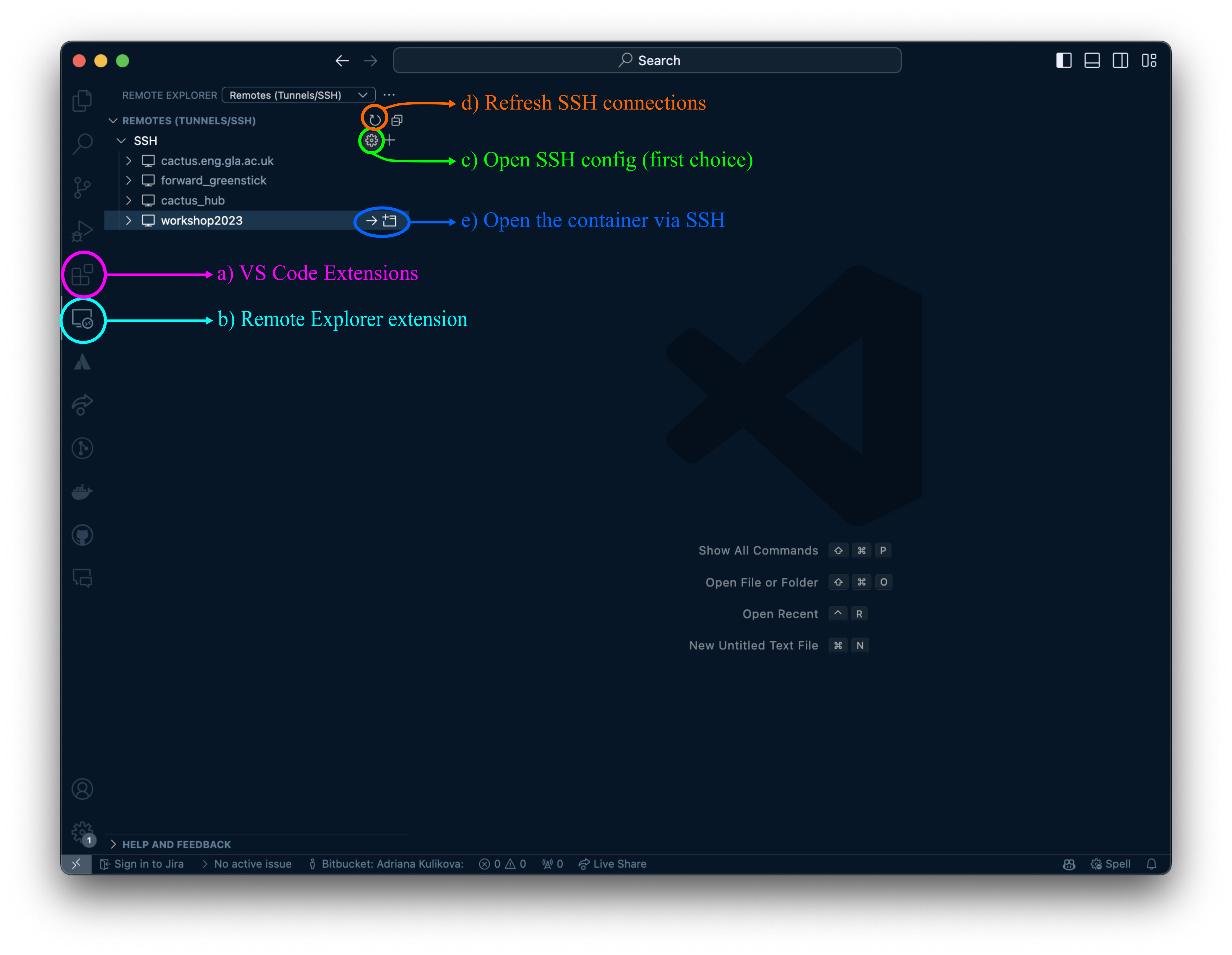
We will only cover the process with using Visual Studio Code. Start by making sure you have it installed. Figure 6 shows locations of the next steps.
a) Go to Extensions within VS Code and install Remote - SSH extension. This will allow you to connect to servers or containers like the one we created.
b) Open Remote Explorer extension
c) Press on the gear button highlighted as c) (you might need to hover over), open your .ssh/config file and copy there the following lines:
Here, we can see the port forwarding number 2222 we set up for our container earlier.
d) Refresh SSH connections (you might need to hover over) to see the option to connect via SSH to the container in the Remote Explorer extension in VS Code.
e) Connect to the container in VS Code (use the SSH password you set previously) and you should see the same folders and files as you do when you open it through a web browser (http://localhost:8000).
If you are asked about the environment by VS Code during these steps, select
Linux.
To set up debugging, follow these steps:
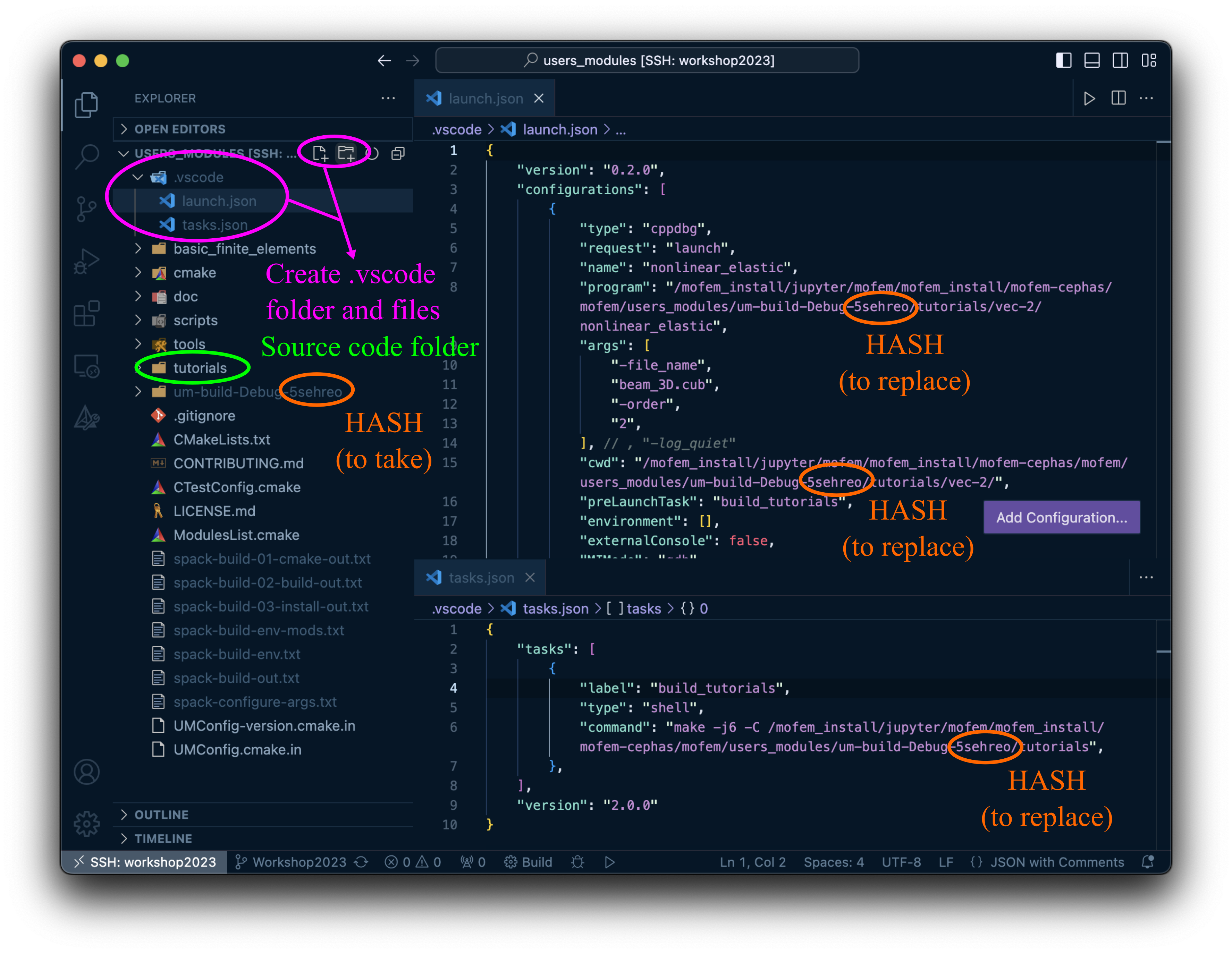
~/mofem_install/mofem-cephas folder through File -> Open Folder...Extensions within VS Code, see Figure 6 a) , and install C/C++ and C/C++ Extension Pack extensions.vscode folder, download files launch.json & tasks.json and place them into the .vscode folder, see Figure 7ghishxx with the hash in your folder, see HASH in Figure 7In launch.json, /mofem_install/jupyter/mofem/mofem_install/mofem-cephas/build-linux-ubuntu24.04-x86_64-ghishxx/core-build-Debug-ghishxx/tutorials/scl-1_poisson_2d_homogeneous/ is the folder where the executable is located and you can change it to what you want to debug. Here, poisson_2d_homogeneous is the executable name. We suggest copying and then searching for these terms to change them in all of the locations. Lastly, check which mesh (required by the flag -file_name) is located at the current working directory.
tasks.json file defines which folder should be rebuild before running your code with debugging.
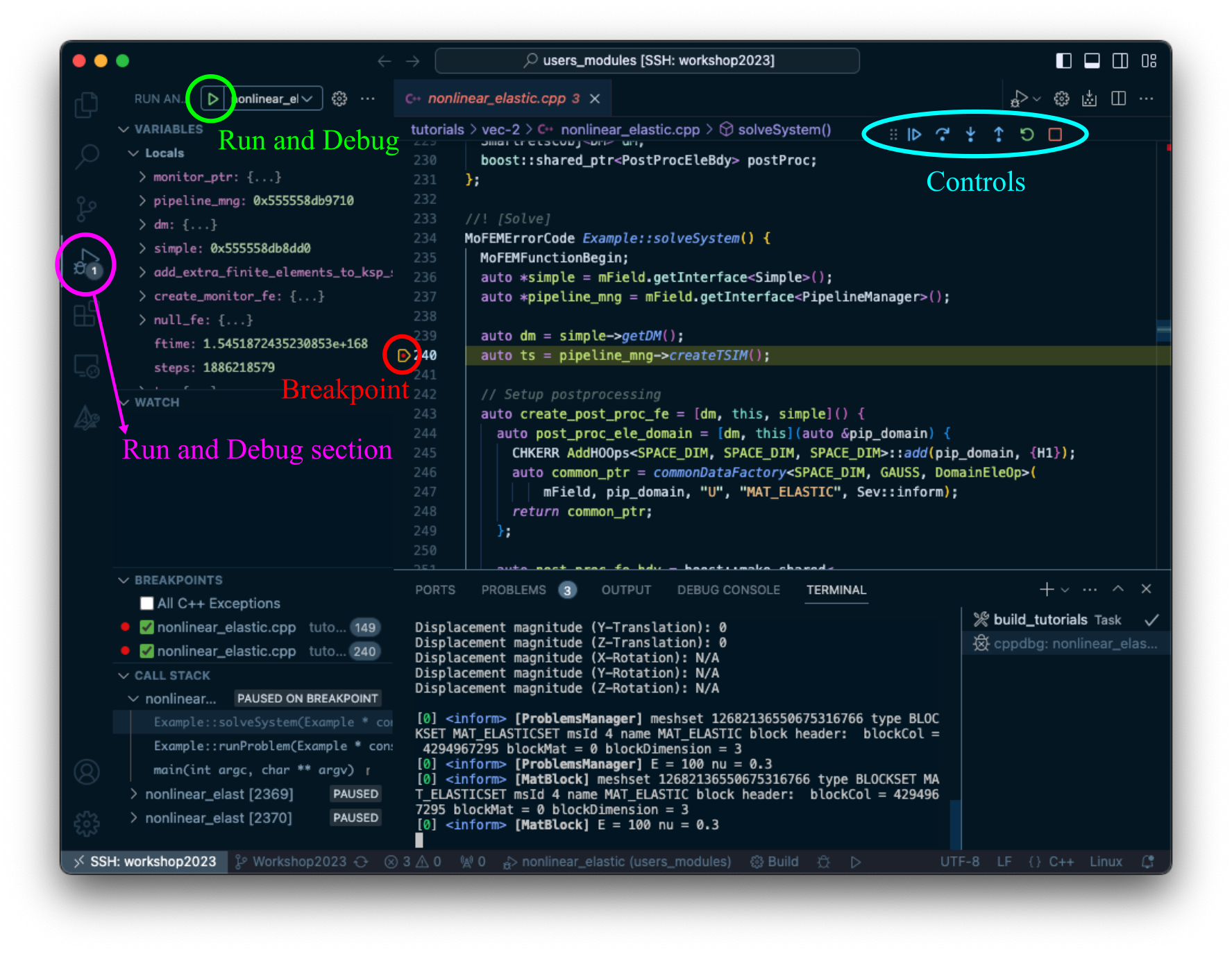
For this section refer to Figure 8.
This should trigger recompilation of the folder defined in tasks.json, start the analysis, and eventually stop at the breakpoint if everything was set correctly. You can use controls to navigate the debugging session. For more information see VS Code instructions for debugging.
The same procedure can be applied for any other users you create and everyone can debug separately.
You can also watch the step-by-step instructions for setting up MoFEM debugging within Docker container (older version) using VScode in the following video:
To run the example notebooks with the code which was amended during debugging, new compilation will be needed. The existing symbolic links in your home directory in JupyterHub are:
mofem_install source directory in your folder)For running larger problems, like the ones in some of the example notebooks, using a release version is advised as it is much faster. mofem_view is a release version but not of the code which you might have amended during the debugging part of these instructions. To compile this code with a release version run the mofem_install_from_source with build_type = Release. This will compile a new release version and create view_..._Release folder in your home folder:
To run the notebooks provided with the amended version of the code, replace mofem_view (um_view in older notebooks) in the path definitions in the notebooks you want to run with view_..._Release. If you change the code again, you can rerun the mofem_install_from_source notebook with build_type = Release to recompile and update view_..._Release folder or you can manually compile the code by running:
For developer, you may wish to have a look at these two tutorials for compiling the code and adding new modules in MoFEM:
Any problems with this installation, please contact us by mofem-group@googlegroups.com.